
To improve cell phone reception, start with the free fixes: turn Airplane Mode on and off, restart your phone, install software and carrier settings updates, take off a thick or metal case and move to another spot. If the signal inside your home stays weak, turn on Wi-Fi calling. Abroad, check that Data Roaming is on for the line you use, or install a travel eSIM for local data. Below is each fix, with the settings Apple, Google and carriers give.

Quick fixes that take a minute
Turn Airplane Mode on and off
This makes your phone drop the network and look for it again. Apple says to turn on Airplane Mode for at least 15 seconds, then turn it off (Apple). Vodafone UK explains that it forces your phone to rescan for your mobile network (Vodafone UK).
Restart your phone
Both Apple and Google list a restart. On a Pixel, Google's advice is to power the phone off rather than choose Restart, wait 30 seconds, then turn it back on and test the connection (Google).
Take off your case
Google says buildings, walls and some phone cases can interfere with mobile service, including 5G, and suggests removing the case to test. Vodafone UK adds that a particularly thick case, or one made with metal, can block the signal (Vodafone UK).
Update your phone and carrier settings
Out-of-date software can interfere with your mobile connection, and a bug may be fixed by an update, says Vodafone UK. Install the latest version of iOS or Android first.
Carrier settings are a separate, small update from your network. On an iPhone, connect to Wi-Fi, open Settings, tap General, then About. If an update is available, you'll see an option to update your carrier settings (Apple). If you insert a new SIM, Apple says to download the carrier settings for the new carrier.
Your SIM can matter too. Vodafone UK says older SIM cards (3 to 5 years) sometimes struggle to connect to newer technologies like 5G. If you haven't changed SIM in years, ask your carrier whether you need a new one. Our guide do I need a new SIM card for 5G? explains why.
Check your network settings
Forget the old "switch to 3G" tip
You'll still read that dropping to 3G helps in crowded places. Apple's current advice points the other way: if your iPhone uses a 3G network, update iOS, then go to Settings > Cellular > Cellular Data Options and turn on Enable LTE. Apple adds that devices supporting 5G aren't affected by the 3G phase-out (Apple).
On iPhone: choose 5G Auto, 5G On or LTE
On an iPhone 12 or later with a 5G plan, go to Settings > Cellular (Mobile Data in some countries) > Cellular Data Options > Voice & Data. 5G Auto is the default and switches to LTE when 5G doesn't give a noticeably better experience. 5G On always uses 5G when it's available and can reduce battery life. LTE uses only LTE, even where 5G is available (Apple). If one option gives you a patchy connection where you are, try another. Our guide to the difference between 4G and 5G explains what changes.
On Pixel: preferred network type and VoLTE
Open Settings, go to Network & internet > SIMs and select your carrier. There you can choose a preferred network type: 5G (recommended), LTE, 3G or 2G, depending on your carrier and country. When 5G isn't available, the phone falls back to 4G and lower networks. If you have dropped calls or trouble keeping a voice connection, check your VoLTE status on the same screen. Google also notes that Battery Saver turns off 5G (Google).
Reset mobile network settings
If nothing has helped on a Pixel, go to Settings > System > Reset options > Reset mobile network settings (Google). On an iPhone with Dual SIM, check in Settings > Cellular that the line you want is turned on. For a physical SIM, Apple suggests removing it and putting it back in, and asking your carrier for a new one if it's damaged (Apple).
Pick a network manually
Your phone normally picks a network for you. On a Pixel, under Settings > Network & internet > SIMs you can use the Network option to pick your network operator from the available networks (Google). On an iPhone, Apple's advice is to turn on Airplane Mode for about 30 seconds and then off, so your phone can reconnect to the best available network (Apple).
Use Wi-Fi calling when the signal is weak indoors
Wi-Fi calling doesn't improve your cell signal. It lets you call and text over Wi-Fi instead, which is what you want in a room with little or no coverage. Apple describes it as being for places with a Wi-Fi connection and little or no cellular coverage. Your carrier must offer it, and not all Wi-Fi networks work with it (Apple).
- iPhone: Settings > Cellular, select your line if you have more than one, tap Wi-Fi Calling and turn on Wi-Fi Calling on This iPhone.
- Pixel: Settings > Network & internet > SIMs, tap Wi-Fi calling and turn on Use Wi-Fi calling, then place a test call. Google says not all carriers support it and fees may apply, so check with your carrier first (Google).
Apple notes that your iPhone uses the cellular network for emergency calls when it's available, and may use Wi-Fi calling only when it isn't. You may be asked to confirm your address for emergency services when you turn the feature on. Our guide to what Wi-Fi calling is and how it works goes further.

How to get better cell phone reception in your house
- Try another spot. If calls keep dropping in the same place, Vodafone UK suggests moving to a different part of your home, because a building's materials can affect the signal. Google gives the same advice: if the signal is weak, try switching location.
- Test without Wi-Fi. To see your real mobile signal on a Pixel, Google suggests turning off Wi-Fi first and then checking the signal bars.
- Check for outages and coverage. Poor signal can be a network outage. Vodafone UK says your network provider should have a network status checker. Google suggests asking your carrier about coverage in your area if it stays poor.
- Look at your phone and plan. Vodafone UK notes that phones made before 2020 and feature phones often can't connect to 5G, and that not every plan includes 5G.
If one carrier simply doesn't cover your home well, switching to another one in your area is the last free fix. Our guide on how to choose a mobile network can help.
Are signal boosters and repeaters worth it?
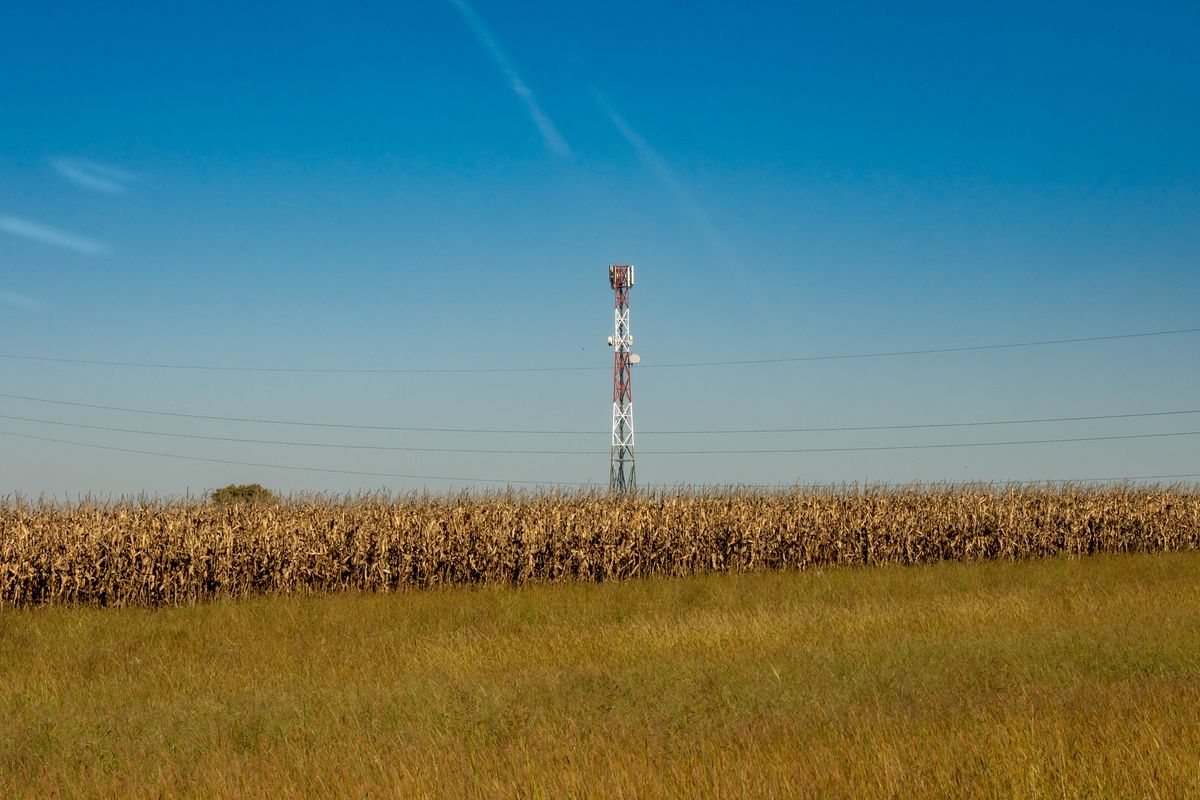
A repeater takes a usable signal from one spot and repeats it into an area where coverage is lacking. The catch is that the rules depend on your country and your carrier. In Australia, Telstra says that to operate a mobile repeater, it must be a carrier approved device and you must get authorisation from your carrier. It warns that illegal repeaters cause interference that can degrade the network for other users, including the part used by emergency services (Telstra).
Before you buy one anywhere, ask your carrier which devices are allowed on its network, and check your telecoms regulator's rules. Try Wi-Fi calling first, because it costs nothing if you already have home Wi-Fi.
How to fix poor reception abroad
Weak or no signal after you land is often a settings issue rather than real coverage. Apple's checklist for travellers (Apple):
- Set Date & Time automatically in Settings > General.
- Turn Airplane Mode on for about 30 seconds, then off, so your phone reconnects to the best available network.
- Turn on Data Roaming if you see No Service or SOS only: Settings > Cellular, turn on Cellular Data, tap Cellular Data Options (with Dual SIM, tap the number first) and turn on Data Roaming.
- Try a different SIM or contact your carrier if it still doesn't work.
On a Pixel, the Roaming option sits under Settings > Network & internet > SIMs (Google). Our guide to the correct roaming settings for an eSIM shows which line needs roaming on, and if your eSIM says no network, see eSIM network not available: 7 fixes.
Use a travel eSIM for local data
Before you travel, Apple suggests checking whether your carrier includes roaming in your plan or sells a travel pass. The other option is a travel eSIM. Apple describes using one eSIM for your home number and another for the place you're visiting. If you keep both lines on, the travel eSIM handles data, though you might still incur roaming fees on your home line. If you use only the travel eSIM, FaceTime and iMessage keep working on your home number. Your iPhone must be unlocked to use another carrier (Apple). Read international roaming vs travel eSIM to compare costs, then install your eSIM on Wi-Fi before you fly.
Data-only plans for Europe · 10 GB, 20 GB or 50 GB · See all Europe eSIMs
Data-only plans for the USA · 10 GB, 20 GB or 50 GB · See all USA eSIMs · Heading somewhere else? Find your destination
FAQs
Does Wi-Fi improve cell phone reception?
No. Wi-Fi calling lets you make calls and send texts over Wi-Fi instead of the mobile network, so it helps where the signal is weak, but your cell signal stays the same.
Why is my phone reception bad at home?
Walls, building materials and your location in the house can weaken the signal. A network outage, an old SIM, a thick or metal case, or out-of-date software can also be the cause.
Should I switch my phone to 3G for a better signal?
Not anymore. Apple's advice for iPhones on 3G is to turn on Enable LTE, and Google recommends 5G as the preferred network type on Pixel phones.
How do I stop my phone from dropping calls?
Restart your phone and install any updates. On a Pixel, check your VoLTE status under Network & internet > SIMs. Indoors, turn on Wi-Fi calling.
Can a phone case block signal?
It can. Google says some cases interfere with mobile service, and Vodafone UK says thick or metal cases are the ones to watch.
Are cell phone signal boosters legal?
It depends on the country. In Australia, Telstra says a repeater must be carrier approved and authorised by your carrier. Ask your carrier before you buy one.
Why do I have no reception abroad?
Data Roaming may be off, or your phone may be stuck on a weak network. Set Date & Time to automatic, toggle Airplane Mode for about 30 seconds and turn on Data Roaming for the line you use.