Yes, a cellular Apple Watch can work abroad, but only through your iPhone carrier. Apple supports international roaming on cellular models from Series 5, SE and Ultra with watchOS 9.1 or later, and your carrier has to add the watch to your roaming plan. If your carrier doesn't offer that, your watch still works abroad through your iPhone or Wi-Fi, and many features need no connection at all. Here is what Apple requires, how to switch roaming on, and how to plan around it.
A note before we start: SimOptions sells travel eSIMs for phones. They are data-only and can't be added to an Apple Watch, and neither can any other travel eSIM, for the reason explained below. The plans on this page are ours and go on your iPhone, which then keeps your watch connected while it's nearby.
SimOptions Europe eSIMs · data only · for your phone, not your watch · See all Europe eSIMs
Can you use Apple Watch cellular abroad?
You can, if four things line up. Apple's support article Set up cellular on Apple Watch lists them:
- Your watch model: international roaming is available on cellular models of Apple Watch Series 5 and later, Apple Watch SE and later, and Apple Watch Ultra and later. GPS-only models have no cellular connection at all.
- Your software: the watch needs watchOS 9.1 or later.
- Your carrier: your iPhone carrier has to add the watch to your iPhone's roaming plan, and it must support VoLTE and roaming. Apple says that not all carriers support international roaming on Apple Watch, and that coverage in other countries is set by your carrier.
- How the watch was set up: roaming isn't supported on a cellular watch set up with Apple Watch For Your Kids (formerly Family Setup).
So the real answer sits with your carrier. Before you book a trip around it, ask your carrier two questions: does my plan include roaming on Apple Watch, and in which countries? Apple lists the carriers that offer Apple Watch cellular in each country on its Apple Watch carriers page.
Your watch is built for one region
There is a hardware limit too. Apple's support article says cellular Apple Watch models come in regional models for the Americas, China mainland, and Europe/Asia Pacific, and that unlike iPhone, there is no worldwide model that supports every cellular band used around the world.
A watch bought in one region may not find a network in another, even when your carrier allows roaming there. If you travel often between regions, ask your carrier which countries it supports for your model.
Which networks the watch connects to
According to Apple, cellular Apple Watch models introduced in 2024 and earlier connect to 4G LTE and 3G (UMTS) networks. Apple Watch Series 11 and later, Apple Watch SE 3 and Apple Watch Ultra 3 and later can also use 5G where it's available, with a participating carrier.
How to turn on roaming on Apple Watch
- Call your carrier before you leave. Ask it to add your Apple Watch to your iPhone's roaming plan. Apple also says you must be within your carrier's network when you set up cellular on the watch, so do this at home, not at your destination.
- Update both devices. Install the latest iOS and watchOS, and check for a carrier settings update on your iPhone.
- Turn on Data Roaming on the watch. Open the Settings app on your Apple Watch, tap Cellular, then turn on Data Roaming.
- Check the connection when you land. Press the side button to open Control Center. The Cellular button turns green with signal bars when the watch is on cellular. It's white when your plan is active but the watch is connected to your iPhone, over Bluetooth or Wi-Fi.
- Keep an eye on data. On the watch, open Settings, tap Cellular and scroll down to see the data used in the current period. You can also check it in the Apple Watch app on your iPhone: My Watch, Cellular, then Cellular Data Usage.
Roaming rates for your watch come from your carrier, as they do for your iPhone. Our guide to data roaming explains how those charges work.
Why a travel eSIM can't go on your Apple Watch
Apple is clear on this: your iPhone and Apple Watch must use the same carrier. The only exception is a watch set up with Apple Watch For Your Kids, and that watch can't roam. Apple also says prepaid accounts and some older accounts aren't currently supported for Apple Watch cellular.
A Dual SIM iPhone doesn't change that. Apple says you can add more than one line to a cellular Apple Watch, but each iPhone plan must come from a carrier that supports Apple Watch with cellular, and the watch connects to only one line at a time (Apple Watch User Guide: Use Dual SIM).
That rules out travel eSIMs, ours included. They are bought for a trip, from a provider that isn't your home carrier, so the watch can't use them. Our guide to the best SIM card for smartwatches covers the same rule for other watch brands.
The workaround: keep your iPhone online
Apple Watch uses Bluetooth to connect to its paired iPhone, and uses the iPhone for many wireless functions. When your iPhone is nearby, the watch connects through it. So if your iPhone has data abroad, your watch keeps getting app notifications and iMessages through the phone. Texts and calls to your home number still depend on your home line being reachable.
That is where a travel eSIM helps. You add it to your iPhone and use it for data while you're away. Your watch never needs a plan of its own. Check that your iPhone takes an eSIM with our eSIM compatibility guide, then follow the eSIM installation steps before you leave.
If you leave your iPhone at the hotel
This is where the limits show. Without your iPhone and without a roaming plan on the watch, the watch can only go online over Wi-Fi. And even a cellular watch that is roaming still leans on the iPhone for some things. Apple says that to receive SMS, MMS or notifications from third-party apps on a cellular Apple Watch, your paired iPhone must be turned on and connected to Wi-Fi or cellular, though it doesn't need to be nearby (Use your Apple Watch without your iPhone nearby). So if you leave the phone behind, leave it on and connected.
Using your Apple Watch on Wi-Fi abroad
When your iPhone is off or out of range, your Apple Watch can send and receive data over Wi-Fi. Apple's Wi-Fi guide for Apple Watch lists the networks it can use:
- Compatible networks: 802.11b/g/n networks on 2.4 GHz or 5 GHz.
- Networks your iPhone knows: a network your iPhone has used while connected to the watch. You can also join one from the watch: open Control Center, touch and hold the Wi-Fi button, pick the network, enter the password and tap Join.
- Not hotel login pages: Apple Watch can't join public networks that require a login, subscription or profile. Apple calls these captive networks and names hotels, stores and businesses among the places that use them.
That last point catches many travellers out. If your hotel Wi-Fi opens a sign-in page, your watch won't get on it by itself, so it has to rely on your iPhone, or on its own roaming connection if you have one. Our guide on hotel Wi-Fi safety covers what to watch for on those networks.
Calls over Wi-Fi
Apple says that if your carrier offers Wi-Fi calling, your watch can make and receive calls over Wi-Fi, even when your iPhone is off or not with you. The watch has to be within range of a Wi-Fi network your iPhone has connected to before. To set it up on your iPhone, open Settings, tap Cellular, tap Wi-Fi Calling, turn on Wi-Fi Calling on This iPhone, then turn on Add Wi-Fi Calling For Other Devices (Apple Watch User Guide: Make calls). If Wi-Fi calling isn't turned on, Apple suggests trying a FaceTime audio call instead (Use your Apple Watch without your iPhone nearby).
What works with no connection at all
Plenty of the watch keeps going with no iPhone, no Wi-Fi and no cellular signal. Apple lists these, among others:
- Apple Pay: you can pay with the cards in your watch's Wallet. Our guide to using Apple Pay abroad explains where it's accepted.
- Workouts and activity: tracking works offline, and the built-in GPS records distance and speed on outdoor workouts without your iPhone.
- Time tools: the time, Alarm, Timer and Stopwatch.
- Health: heart rate, blood oxygen, ECG and sleep tracking, on the models that have them.
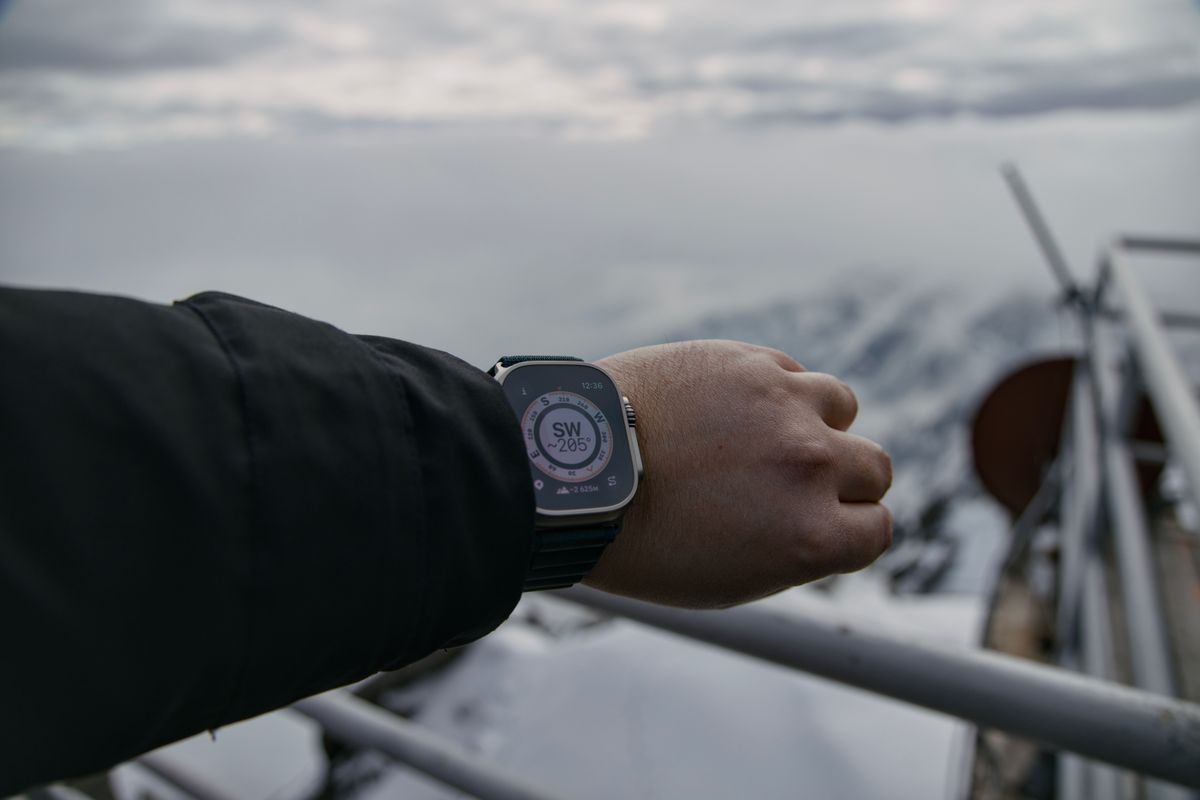
- Getting around: the Compass app.
- Media: music, podcasts and audiobooks you downloaded to the watch, and photos from synced albums.
Apple notes that not every feature is available on every model, or in every country or region.
Emergency SOS on Apple Watch abroad
According to Apple, Apple Watch Series 5 and later (GPS + Cellular), Apple Watch SE and later (GPS + Cellular) and all Apple Watch Ultra models can call local emergency services when you're in another country or region. In some countries this works even if you haven't set up cellular service on the watch, and Apple keeps the list of supported countries (Use Emergency SOS on your Apple Watch).
- Location and contacts: abroad, the watch connects you to local emergency services, but it may not be able to send your location or a text message to your emergency contacts.
- GPS-only watches: your iPhone needs to be nearby, as it does at home.
- Wi-Fi calls: Apple's guide to making calls says to use cellular instead of Wi-Fi when possible, for the most accurate location during emergency calls.
For the bigger picture, see our guide to handling emergencies abroad.
Battery tips for a travel day
- Cellular costs battery. Apple says using cellular for long periods uses more battery power, and some apps may not update without a connection to your iPhone.
- Turn cellular off when you don't need it. Open Control Center and tap the Cellular button.
- Know what Low Power Mode does. It always stops background heart rate and blood oxygen readings. When your iPhone isn't nearby, it also turns off Wi-Fi and cellular until you open an app that needs a connection, plus incoming calls and notifications. Apple says missed calls and notifications are then fetched once an hour (Use Low Power Mode on your Apple Watch).
SimOptions USA eSIMs · data only · for your phone, not your watch · See all USA eSIMs
Before you fly: a quick checklist
- Ask your carrier if your plan includes roaming on Apple Watch, and in which countries.
- Check that your watch's regional model suits where you're going.
- Update iOS, watchOS and your carrier settings.
- Turn on Data Roaming on the watch, if your carrier supports it.
- If it doesn't, plan to keep your iPhone online, for example with a travel eSIM on the phone.
- Download the music, podcasts and audiobooks you want to the watch.
- Check that your cards in Wallet work abroad with your bank.
How we put this guide together: every Apple Watch fact on this page comes from Apple's own support articles and the Apple Watch User Guide, which we read in November: Set up cellular on Apple Watch, Use your Apple Watch without your iPhone nearby, Use Emergency SOS on your Apple Watch, and the user guide pages on Wi-Fi, calls and Dual SIM. Roaming support and prices come from your carrier, so check with it before you travel. SimOptions sells eSIMs for phones; they don't work on Apple Watch.
FAQ: Apple Watch cellular abroad
Does Apple Watch cellular work internationally?
Yes, on cellular Series 5 and later, SE and later and Ultra and later with watchOS 9.1 or later, if your iPhone carrier supports roaming on Apple Watch and adds the watch to your roaming plan. Then you turn on Data Roaming in the watch's Settings app.
How do I turn on roaming on my Apple Watch?
Open the Settings app on your Apple Watch, tap Cellular, then turn on Data Roaming. Your carrier must first add the watch to your iPhone's roaming plan.
Can I put a travel eSIM on my Apple Watch?
No. Apple says your iPhone and Apple Watch must use the same carrier, and every plan on the watch must come from a carrier that supports Apple Watch. Put the travel eSIM on your iPhone instead, and the watch connects through the phone when it's nearby.
Will my Apple Watch work abroad without a roaming plan?
Yes. It works through your iPhone when the phone is nearby and online, over Wi-Fi networks it can join, and many features such as Apple Pay, workouts and alarms need no connection at all.
Why won't my Apple Watch join the hotel Wi-Fi?
Apple Watch can't join networks that need a login, subscription or profile, which many hotels use. Use your iPhone's connection instead.
Does my Apple Watch work in every country?
Not on cellular. Watches come in regional models, and Apple says no model covers every cellular band in the world. Your carrier also decides which countries you can roam in.
Can I call emergency services from my Apple Watch abroad?
Cellular Series 5 and later, cellular SE and later, and all Ultra models can call local emergency services abroad. In some countries this works without cellular service set up on the watch. A GPS-only watch needs your iPhone nearby.