
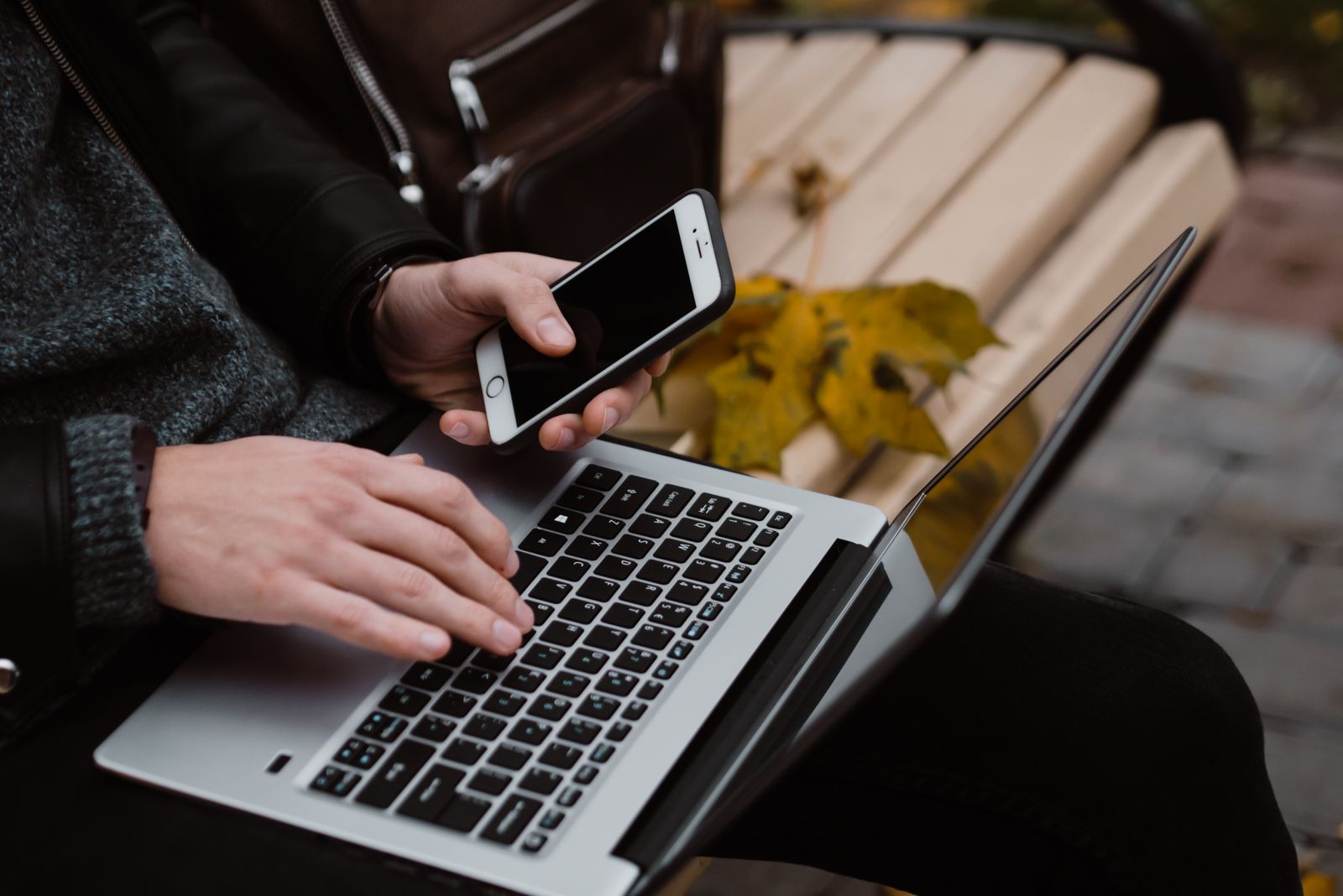
As a digital nomad, the simplest way to stay connected is a two-line setup on one phone. You keep your home number switched on for calls, texts and bank codes, and you use a travel eSIM for mobile data in the country or region you're in. Wi-Fi and a backup plan cover the rest. This guide shows you how to set that up, which kind of eSIM fits your route, how to run your laptop on your phone's hotspot, and how to keep two-factor codes arriving while you're abroad.
How digital nomads stay connected: the two-line setup
An eSIM is a digital SIM built into your phone. Most phones that support eSIM can run two lines at once. That's what makes life on the road easier:
- Line 1, your home number: stays on for calls, SMS and security codes. You turn off data roaming on it, so it can't run up data charges.
- Line 2, a travel eSIM: handles all your mobile data. You buy it online, install it with a QR code, and swap or top it up when you move on.
Your phone uses only one line for mobile data at a time, but both lines can make and receive calls and texts (Apple: Using Dual SIM with an eSIM). iPhone 13 and later models can even run two eSIMs, so you don't need a physical SIM at all.
Set it up on iPhone

- Install the travel eSIM on Wi-Fi before you leave. Our guide on how to install an eSIM walks you through it.
- Go to Settings > Cellular (or Mobile Data), tap each line and give it a label, such as "Home" and "Travel".
- Under Cellular Data, choose the travel eSIM.
- Tap your home line and turn off Data Roaming. Keep the line itself on.
Set it up on Android
- Install the eSIM on Wi-Fi. On a Pixel, your SIMs are under Settings > Network & internet > SIMs (Google: Use dual SIMs on Pixel). On a Samsung Galaxy, look for Settings > Connections > SIM manager.
- Set the travel eSIM as your mobile data SIM.
- Turn off roaming on your home SIM and leave it on for calls and SMS.
Want the full walkthrough, with call and text defaults? See how to set up and manage a dual eSIM.
Why not just roam on your home plan?
You can, but it often costs more and isn't built for long stays. If you have an EU plan, "roam like at home" covers trips within the EU, Iceland, Liechtenstein, Norway, Ukraine and Moldova. It's meant for periodic travel, though. If you roam more than you use your plan at home over a 4-month period, your operator may contact you and add a surcharge. The UK isn't covered (European Commission: Roaming). Plans from the UK, US, Canada or Australia have their own roaming prices. More on this in how to avoid roaming charges.
Country, regional or long-stay eSIM: which fits your route?
International data plans for digital nomads come in a few types. The right one depends on how fast you move and how much you work online. Choosing where to base yourself? See the countries with the best and worst internet in the world and the top 20 countries with the most jobs available.
Staying in one country
A country plan is the simplest choice for a month in Mexico City or a few weeks in the US. Some country plans have long validity, like 90 or 180 days, which suits slow travel.
Moving between countries in one region
A regional plan works across several countries on one eSIM, so you don't buy a new plan at every border. That fits a summer across Croatia, Greece and Italy, or a loop through Southeast Asia. Always check the country list on the plan page before you buy, because coverage differs from plan to plan.
Staying a month or more
Look at two things: how many days the plan lasts and whether you can top it up. Many SimOptions data plans can be topped up on the same eSIM, so you don't need a new QR code. The Bouygues Telecom plans can't be topped up, so you buy a new one when it runs out. Each plan page shows this under Top-Up Options.
Do you need a local phone number?
Most travel eSIMs are data-only. That's fine if you call and message on WhatsApp, FaceTime or Signal. If landlords, coworking spaces or delivery drivers need to call or text you, a plan with a number helps. At SimOptions, the Bouygues Telecom plans for Europe come with a French +33 number with unlimited calls and SMS within Europe. Not sure what yours has? Here's how to find your eSIM phone number.
Planning a longer stay? These plans give you more days or more data than a typical holiday eSIM. Pick the one for the region you're heading to.
Europe: Bouygues Telecom, French +33 number, 30 days · Asia: data-only, 60 days · Mexico and USA: data-only, 90 and 180 days · Find your destination
Using your phone as a hotspot for your laptop
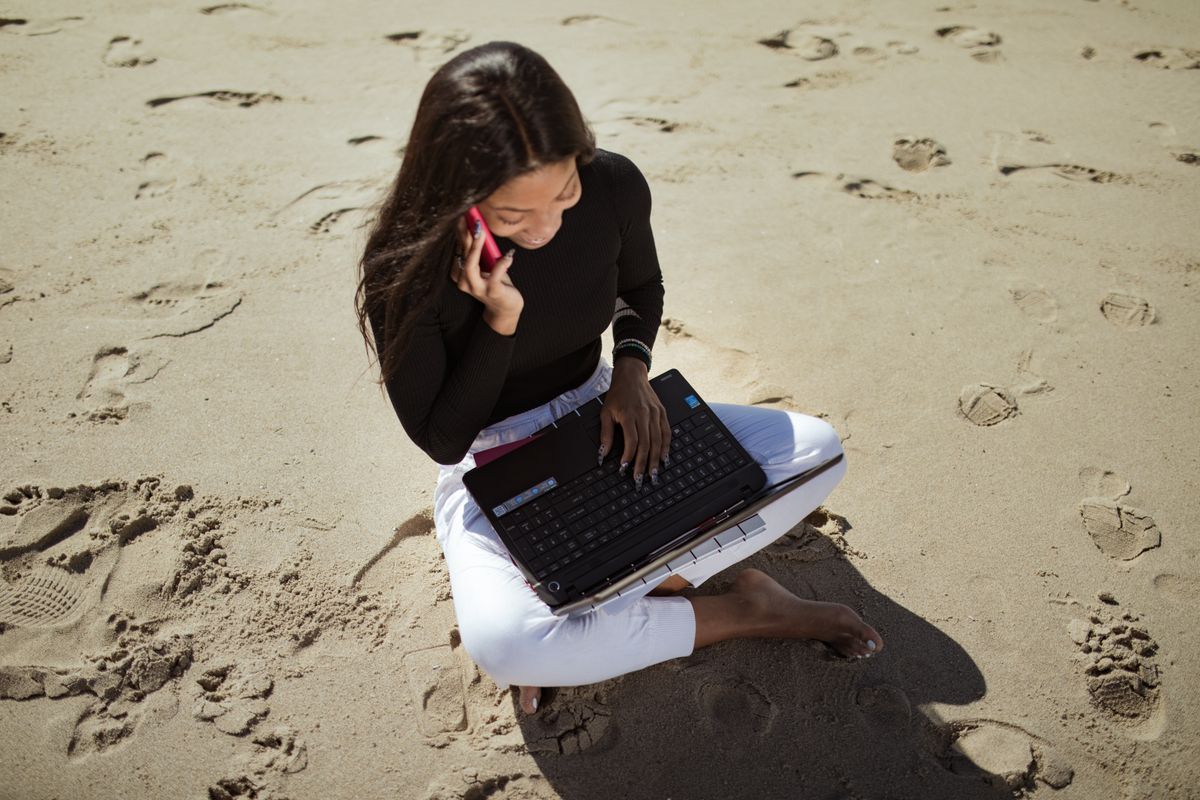
Your phone's hotspot turns your travel eSIM into Wi-Fi for your laptop or tablet. It's the quickest fix when the cafe Wi-Fi drops right before a call. Most of our eSIMs allow hotspot and tethering, so check the plan details on the destination page before you buy. If you're new to it, read what tethering is and how to turn it on.
On iPhone
Go to Settings > Personal Hotspot and turn on Allow Others to Join. Set a Wi-Fi password of at least eight characters. If the option is greyed out, check that Cellular Data is on for your travel eSIM (Apple: Connect to the Personal Hotspot of an iPhone or iPad).
On Android
Swipe down from the top of the screen and tap the Hotspot tile. Touch and hold it for more options, including USB and Bluetooth tethering (Google: Share a mobile connection by hotspot or tethering).
How much data does remote work use?
Email, chat and documents use little. Video calls use the most. Zoom recommends 1.2 Mbps up and down for a one-to-one call in 720p HD (Zoom: system requirements). That works out at roughly 1 GB per hour of video. A few tips to make your data last:
- Pause cloud sync and automatic updates on your laptop while it's on your hotspot.
- Turn your camera off on calls where you don't need it.
- Check your usage after your first week, then pick your next plan based on real numbers.
If you work in Europe and spend a lot of time on video calls, a big plan saves you from running out mid-month. This one also gives you a French number for local calls and texts.
Always have a backup connection
Networks drop, plans run out and Wi-Fi fails at the worst moment. A backup keeps your workday going:
- A second eSIM: keep a spare plan installed for your region. If your main network is weak in one town, switch your data line in a few taps.
- Wi-Fi you can trust: coworking spaces and accommodation with good reviews for Wi-Fi are your main office. Our list of top destinations for digital nomads helps you plan where to base yourself.
- Offline maps and files: download maps for your next city and keep the files you need for tomorrow's work offline.
- Cloud copies of your documents: keep scans of your passport, visa and insurance in a cloud account you can open from any device.
Keep 2FA codes and bank texts working abroad
Many banks and apps still send login codes by SMS to your home number. That's the main reason to keep your home line switched on.
- Keep your home SIM active: leave it on in dual SIM with data roaming off. Texts still arrive. Your carrier may charge for receiving calls or texts abroad, so check its roaming rates.
- Turn on Wi-Fi Calling for your home line: where your carrier supports it, you can make and receive calls over Wi-Fi when you have little or no signal (Apple: Make a call with Wi-Fi Calling). Read more in what is Wi-Fi Calling.
- Move accounts to an authenticator app where you can: many services let you use an app instead of SMS codes, and it doesn't depend on your SIM or signal (NCSC: Turn on 2-step verification).
- Don't cancel your home plan without a plan B: if you lose the number, you may lose access to accounts that only send codes by SMS.
Stay safe on public Wi-Fi
Cafes, hostels and airports are where nomads work, so it pays to be careful. Most websites now use encryption, which makes public Wi-Fi safer than it used to be. You still need a few habits (FTC: Are public Wi-Fi networks safe?):
- Check for the lock icon or "https" before you type a password or card number.
- Keep your phone and laptop updated, ideally with automatic updates.
- Use strong, unique passwords and turn on two-factor authentication.
- Watch out for fake networks with names close to the real one. Ask staff for the exact network name.
- For banking or sensitive work, use your phone's hotspot on your travel eSIM instead of open Wi-Fi.
Staying in hotels a lot? See is hotel Wi-Fi safe for more tips.
FAQs
What's the best eSIM for digital nomads?
The one that matches your route and how much you work online. Look for coverage of all the countries you'll visit, enough days, hotspot support and top-ups. Choose a plan with a phone number only if people locally need to call or text you.
How do digital nomads handle connectivity abroad?
Most use dual SIM: the home number stays on for calls, texts and security codes, and a travel eSIM provides mobile data. Coworking Wi-Fi, a phone hotspot and a spare eSIM cover the gaps.
Are there international data plans for digital nomads?
Yes. Regional eSIMs cover several countries on one plan, and long-stay plans last 30 to 180 days depending on the destination. Many can be topped up on the same eSIM.
Can I use WhatsApp with a travel eSIM?
Yes. WhatsApp and other messengers work over any internet connection, including a data-only travel eSIM. Your WhatsApp account stays on your usual number, so you don't need to change anything.
Can I use a travel eSIM as a hotspot for remote work?
Usually, yes. Most of our eSIMs allow hotspot and tethering, so check the plan details before you buy. Turn on Personal Hotspot on iPhone or the Hotspot tile on Android, and connect your laptop. Video calls use the most data, so choose a plan with enough GB.
Can I pause a travel eSIM plan to save data for later?
You can stop using data by switching your data line to another SIM or turning the eSIM off. Your remaining data stays on the plan, but the days keep running once the plan has started. The validity starts when your phone first connects in a covered country, so install early, but buy the plan close to when you'll need it.
Can I get a travel eSIM and set it up within an hour?
Yes. At SimOptions, your QR code arrives by email a few minutes after you pay, and it's also in your account. Installing takes a few minutes on Wi-Fi.
What happens if I run out of data on my travel eSIM?
Mobile data stops until you add more. If your plan allows top-ups, add data to the same eSIM from your account or the SimOptions app. If it doesn't, buy a new plan and install it.
Are there privacy risks with travel eSIMs?
A travel eSIM is a normal mobile connection, so the usual habits apply: use encrypted apps and websites and keep your phone updated. To buy a SimOptions eSIM, you only need an email address. No passport or ID is needed.