

To activate an eSIM with a QR code, connect to Wi-Fi and open your phone's eSIM settings. On iPhone, go to Settings > Cellular > Add eSIM > Use QR Code. On Samsung, go to Settings > Connections > SIM manager > Add eSIM > Scan QR code. Point the camera at the code and follow the steps on screen. This guide shows you how to scan an eSIM QR code on iPhone and Android, what to do if it won't scan, and why you should treat the code as single-use.
Before you scan your eSIM QR code
A few checks save you from most failed activations:
- Get online. Your phone downloads the eSIM over the internet. Apple asks you to connect to Wi-Fi or a hotspot, and Samsung to Wi-Fi or mobile data.
- Check that your phone supports eSIM. On iPhone, you need an iPhone XS, XS Max, XR or later (Apple: Set up eSIM on iPhone). Not sure? Here's how to check eSIM compatibility.
- Check that your phone is unlocked if the eSIM comes from another carrier. On iPhone, Settings > General > About shows "No SIM restrictions" next to Carrier Lock when it's unlocked (Apple: Use eSIM while traveling).
- Put the QR code on a second screen. Open the email on a laptop or tablet, or print it. Your camera can't scan the screen it's on.
- Keep the activation details close. The SM-DP+ address and activation code are usually sent with the QR code. You need them if the code won't scan.
How to scan an eSIM QR code on iPhone
The menu is called Cellular or Mobile Data, depending on your region. The steps are the same.
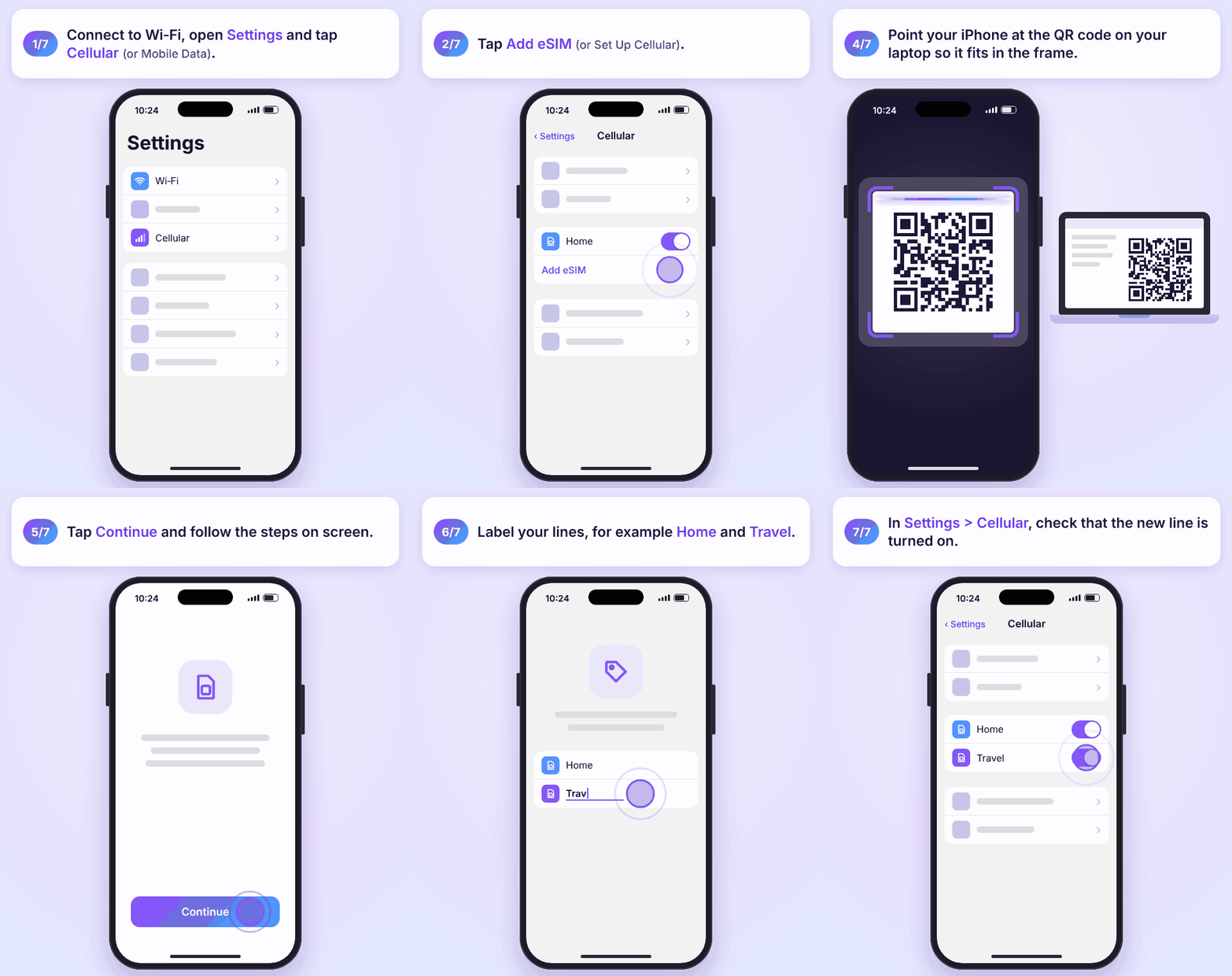
1. Scan it from Settings
- Connect to Wi-Fi.
- Go to Settings > Cellular.
- Tap Set Up Cellular or Add eSIM.
- Tap Use QR Code. You may need to tap Other Options first.
- Position your iPhone so the QR code appears in the frame.
- If you're asked for a confirmation code, enter the one your carrier or eSIM provider gave you.
These are Apple's current steps (iPhone User Guide: Set up cellular service). Setting up a new iPhone? Tap Use QR code when the Set Up Cellular screen appears.
2. Or scan it with the Camera app
Open the Camera app and point it at the QR code. When the Cellular Plan Detected notification appears, tap it. Then tap Continue and Add Cellular Plan (Apple).
3. QR code on the same iPhone?
On iOS 17.4 or later, you don't need a second screen. If the QR code is in an email or a web page, tap and hold it, then tap Add eSIM. Some providers send a link instead of a QR code: on iOS 17.4 or later, just tap the link (Apple).
4. Finish the setup
If you already have a line, your iPhone asks you to label your plans and choose a default line. Give each one a clear name, like "Home" and "Travel". Then pick the line you want for cellular data in Settings > Cellular > Cellular Data (Apple: Use Dual SIM with an eSIM). To check that it worked, go to Settings > Cellular and make sure the new line is turned on.
Want screenshots? See our eSIM installation guide for iPhone.
How to scan an eSIM QR code on Android
Menu names change a little between brands and Android versions. Connect to Wi-Fi first.
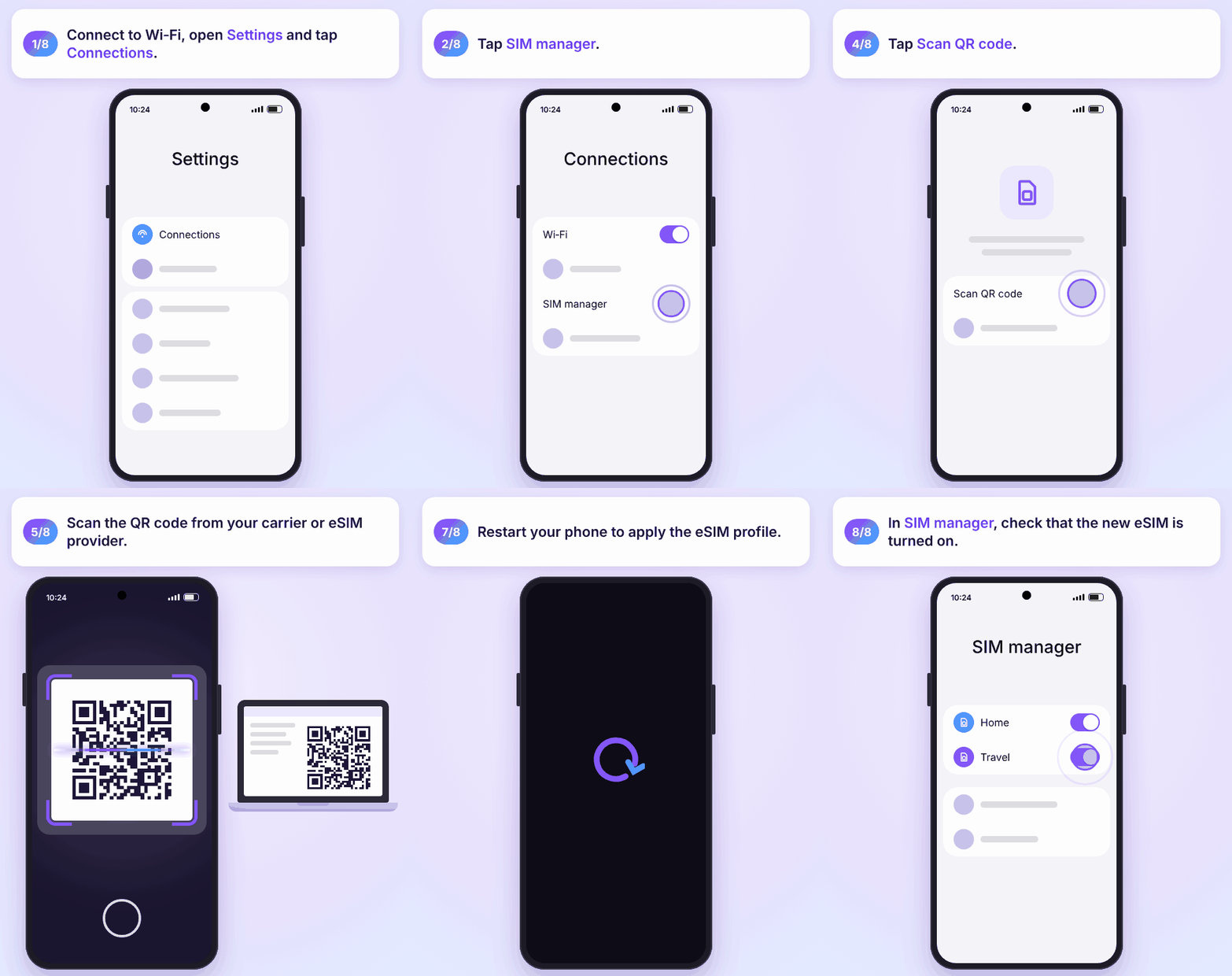
Samsung Galaxy
- Go to Settings > Connections > SIM manager.
- Tap Add eSIM.
- Tap Scan QR code and scan the code from your carrier or eSIM provider.
- Restart your phone. Samsung says you need to restart to apply the eSIM profile (Samsung: SIM cards for your Galaxy).
Google Pixel
- Go to Settings > Network & internet > SIMs.
- Tap Add SIM, then Set up an eSIM.
- Follow the steps and scan the QR code when your phone asks for it (Pixel Phone Help).
Other Android phones
Open Settings and look under Network, Connections or Mobile network for an option to add or download an eSIM. Choose to scan a QR code. Afterwards, check that the new line is on and that it's set for mobile data if you want to use it for data. Step by step: our eSIM installation guide for Android.
Can't scan the QR code? Enter the eSIM details manually

If the camera won't read the code, you can type in what's inside it. An eSIM QR code holds two things: the SM-DP+ address, which is the server that stores your eSIM, and an activation code. Written out, it looks like this (GSMA SGP.22, section 4.1):
LPA:1$SMDP.GSMA.COM$04386-AGYFT-A74Y8-3F815
The part between the two $ signs is the SM-DP+ address. The part after the second $ is the activation code. Your carrier or eSIM provider usually sends both next to the QR code.
- iPhone: go to Settings > Cellular (or Mobile Data), tap Add Cellular Plan, then Enter Details Manually at the bottom of the screen (Apple). Put the SM-DP+ address and the activation code in their own fields.
- Samsung: in SIM manager, choose to add the plan with an activation code instead of a QR code (Samsung Support).
- Pixel and other Android phones: on the scan screen, look for a link to enter the code manually. Many Android phones ask for the full code in one line, starting with LPA:1$.
Type everything exactly as you got it, with no extra spaces. More help: how to enter an eSIM code manually.
Before you switch to manual entry, try the easy fixes: make the code bigger on the screen, turn up the brightness, avoid glare, and hold the phone steady.
Is an eSIM QR code single-use?
Treat it as single-use. Once the code has installed your eSIM, don't count on scanning it again, on the same phone or on another one.
- Don't delete the eSIM to start over. Apple says that if you erase an eSIM, you need to contact your carrier to get a new one (Apple: Erase an eSIM).
- Keep the code private. Anyone who scans it before you could install your eSIM on their phone.
- Some travel eSIMs differ. With some plans you can install the eSIM again from the same QR code, with others you can't. SimOptions says it depends on the eSIM you bought (SimOptions FAQ).
- Changing phones? Use your carrier's transfer option or ask for a new QR code. See how to transfer an eSIM.
Where to get your eSIM QR code (and can you generate one?)
Your QR code always comes from your carrier or eSIM provider: by email, in their app, in your online account, on an activation card or in a store. It isn't stored on your phone, and your phone can't create one.
You can't generate a working eSIM QR code yourself either. A QR code generator can only turn details you already have, like an SM-DP+ address and activation code, into an image. The eSIM behind it has to be created by the carrier.
Many carriers, such as AT&T, Verizon and T-Mobile in the US, can also activate an eSIM without a QR code, through a prompt on your phone or their app (Apple: carriers that offer eSIM). UScellular is now part of T-Mobile, so UScellular customers follow T-Mobile's steps (T-Mobile). Carrier by carrier: how to get a QR code from your carrier.
Scanning a travel eSIM QR code before your trip

With a travel eSIM, the QR code comes by email. At SimOptions, you get it right after you buy, and the activation code for manual setup is in the PDF attached to that email. No email? Check your spam folder (SimOptions FAQ).
- Scan it at home or at the airport, on Wi-Fi, shortly before you leave.
- Keep your home line for calls and texts, and use the travel eSIM for mobile data.
- On iOS 26 or later, you may see a Turn On Travel eSIM notification when you arrive. Tap it and choose to use the travel eSIM alone or with your current line. You can also pick the data line in Settings > Cellular > Cellular Data (Apple).
- Turn off data roaming on your home line to avoid roaming charges.
Going to Europe? This SimOptions plan is data-only and comes as a QR code by email. Scan it at home, and it activates automatically when you arrive in a country it covers.
Travelling somewhere else? These data-only plans install the same way, from a QR code you get by email.
Asia, Middle East and USA plans shown · data-only eSIMs, no phone number · Find the eSIM for your destination
Scanned the code but the eSIM isn't working?
If the eSIM shows in your settings but you have no signal, try this first:
- Turn Airplane Mode on and off, then turn the eSIM line off and on.
- Restart your phone and install any software update.
- For a travel eSIM, check that it's chosen for mobile data and that you're in a country the plan covers.
Still nothing, or an error like "This code is no longer valid"? See why your eSIM is not activating and how to fix it. Bought your eSIM from SimOptions? Contact our support team before you delete anything.
FAQs
How do I scan an eSIM QR code?
Connect to Wi-Fi. On iPhone, go to Settings > Cellular > Add eSIM > Use QR Code, or scan the code with the Camera app. On Samsung, go to Settings > Connections > SIM manager > Add eSIM > Scan QR code. On Pixel, go to Settings > Network & internet > SIMs > Add SIM.
How do I activate an eSIM with a QR code?
Scan the code from your phone's eSIM settings and follow the steps on screen. If your phone asks for a confirmation code, enter the one from your provider. Once the eSIM is added, make sure the line is turned on. A travel eSIM may only connect once you arrive in a country it covers.
How do I get my eSIM QR code?
From your carrier or eSIM provider, usually by email, in their app or in your online account. If you never got one, ask them. Some carriers activate the eSIM without a QR code.
Can I generate my own eSIM QR code?
No. Only your carrier or eSIM provider can create the eSIM. A QR code generator can only turn an SM-DP+ address and activation code you already have into an image.
Can I use the same eSIM QR code twice?
Don't count on it. Treat the code as single-use. If you delete the eSIM, you'll usually need a new one from your carrier. Some travel eSIMs can be installed again from the same code, depending on the plan.
Can I scan an eSIM QR code from a screenshot or my own screen?
Your camera can't scan the screen it's on. On iOS 17.4 or later, you can tap and hold a QR code in an email or browser and tap Add eSIM. Otherwise, open the code on another screen, print it, or enter the details manually.
Do I need Wi-Fi to scan an eSIM QR code?
You need an internet connection to download the eSIM. Wi-Fi is the safest choice. Apple says some eSIM-only iPhones can activate without Wi-Fi in some countries.
What if I lose my phone?
Contact your carrier or eSIM provider. They can turn off the eSIM on the lost phone and give you a new one for your new phone. Have your account details ready.
Is it safe to scan an eSIM QR code?
Yes, if it comes from your carrier or eSIM provider. Only scan codes you got from them, and don't share yours with anyone.