

Is your phone not working properly? Most common mobile phone problems have a simple fix you can do yourself in a few minutes. This list covers 20 phone problems and their solutions for iPhone and Android: a slow phone, a battery that drains fast, overheating, full storage, apps that crash, a frozen or black screen, a phone that won't charge, no signal, no mobile data, Wi-Fi trouble, SIM errors and more. Start with the quick fixes below, then find your problem in the list.
Quick fixes that solve many phone problems
Before you look for your exact problem, try these steps in order. They fix a lot of cell phone problems on their own:
- Restart your phone. If the screen doesn't respond, force restart it (see the next section).
- Update your phone. On iPhone, go to Settings > General > Software Update. On Android, look for Software update or System update in Settings.
- Update your apps in the App Store or Google Play.
- Free up storage if your phone is almost full.
- Turn Airplane Mode on and off if the problem is about signal, calls, data or Wi-Fi.
Still having the problem? Find it below. If nothing helps and you think the phone is damaged, see when to take your phone in for repair at the end of this guide.
How to restart or force restart your phone
A normal restart turns the phone off and on again. A force restart works even when the screen is frozen or black. It doesn't delete your data.
iPhone
On iPhone 8 or later, including iPhone SE (2nd generation and later):
- Press and quickly release the volume up button.
- Press and quickly release the volume down button.
- Press and hold the side button. When the Apple logo appears, let go.
On iPhone 7, hold the side button and volume down together until you see the Apple logo. On iPhone 6s or earlier, hold the side (or top) button and the Home button (Apple: Force restart iPhone, Apple: If your iPhone won't charge).
Samsung Galaxy
Press and hold the side key and volume down together for more than 7 seconds, until the phone restarts. Samsung advises charging the phone first if the battery is low (Samsung: phone frozen).
Google Pixel and other Android phones
On a Pixel, hold the power button for about 60 seconds to force a restart (Pixel Phone Help: Fix a Pixel phone that freezes). On other Android phones, the button combination depends on the maker. Check your phone maker's support page for your model.
General phone problems and solutions
1. Slow phone
A slow phone is often caused by full storage, too many apps running in the background, or an app that misbehaves.
- Restart your phone. This clears temporary memory.
- Free up storage (see problem 4). Phones slow down when they are almost full.
- Uninstall apps you don't use, especially any you installed just before the problem started.
- Update your phone and apps.
- Still slow? A factory reset is the last step. Back up your phone first, because it erases everything. Using an eSIM? Read how to reset your iPhone without losing your eSIM before you start.
2. Bad battery life
If your battery drains fast, find out what's using it:
- On iPhone, go to Settings > Battery to see which apps use the most battery. Check Battery Health in the same menu.
- On Android, go to Settings > Battery and look at battery usage.
- Lower your screen brightness, turn on Low Power Mode (iPhone) or Battery Saver (Android), and close or remove apps that use a lot of battery.
More tips: how to increase battery life on iPhone and Android. If your phone turns off unexpectedly, check the battery health. A worn battery may need replacing.
3. Overheating phone
Your phone can feel warm while it charges, updates, streams video or runs games. That's normal. It becomes a problem when it gets hot, shows a temperature warning, or slows down.
- Get it out of the sun and out of a hot car. Apple designs iPhones for use between 0 and 35 °C (32 to 95 °F) (Apple: If your iPhone gets too hot or too cold).
- If you see a temperature warning, turn the phone off and let it cool down in a cooler place.
- Take off a thick case while charging, and close heavy apps like games, the camera or GPS navigation.
- When a phone is too hot, it can slow down, stop charging, dim the screen or lose signal until it cools down. Apple lists all of these.
4. Full storage space
When storage is full, your phone slows down, apps crash and updates won't install.
- On iPhone, go to Settings > General > iPhone Storage. You'll see what takes up space and can offload or delete apps you don't use.
- On Android, go to Settings > Storage (on Samsung, look under Device care). The Files by Google app can also find junk files, duplicates and large files (Android Help: Free up storage).
- Move photos and videos to a cloud service or a computer, then delete them from the phone.
- Delete old downloads and large video files you've already watched.
- Using a microSD card that your Android phone doesn't recognise? Back up anything on it, then format it in the phone's storage settings. If it still doesn't work, try another card.
5. Apps crash or won't open
- Close the app completely and open it again.
- Update the app and your phone. Old app versions can stop working on new software, and new versions may not work on older phones.
- On Android, go to Settings > Apps, pick the app, and tap Force stop. Then clear its cache in Storage & cache.
- Delete the app and install it again.
- If several apps won't open, restart your phone and free up storage.
6. Phone freezes or the screen goes black
If the screen is frozen, or black while you can still hear sounds or feel vibrations, force restart your phone (see above). Then:
- Update your phone and apps.
- Free up storage.
- If it keeps freezing on Android, start it in Safe mode. Safe mode turns off downloaded apps. If the problem stops, an app is the cause. Remove recently installed apps one by one (Samsung: Safe mode). To leave Safe mode, restart your phone.
If the screen stays black after a force restart and an hour on the charger, the screen or the phone may need repair.
7. Phone restarts by itself
A phone that restarts on its own often has an app or software problem, but it can also mean a worn battery or overheating.
- Update your phone and all your apps.
- Free up storage.
- On Android, test in Safe mode as in problem 6.
- Check that the phone isn't overheating.
- Check your battery health. On iPhone, look in Settings > Battery > Battery Health.
- If it still restarts, back up your phone and contact the manufacturer or a repair shop.
8. Phone won't charge or charges slowly
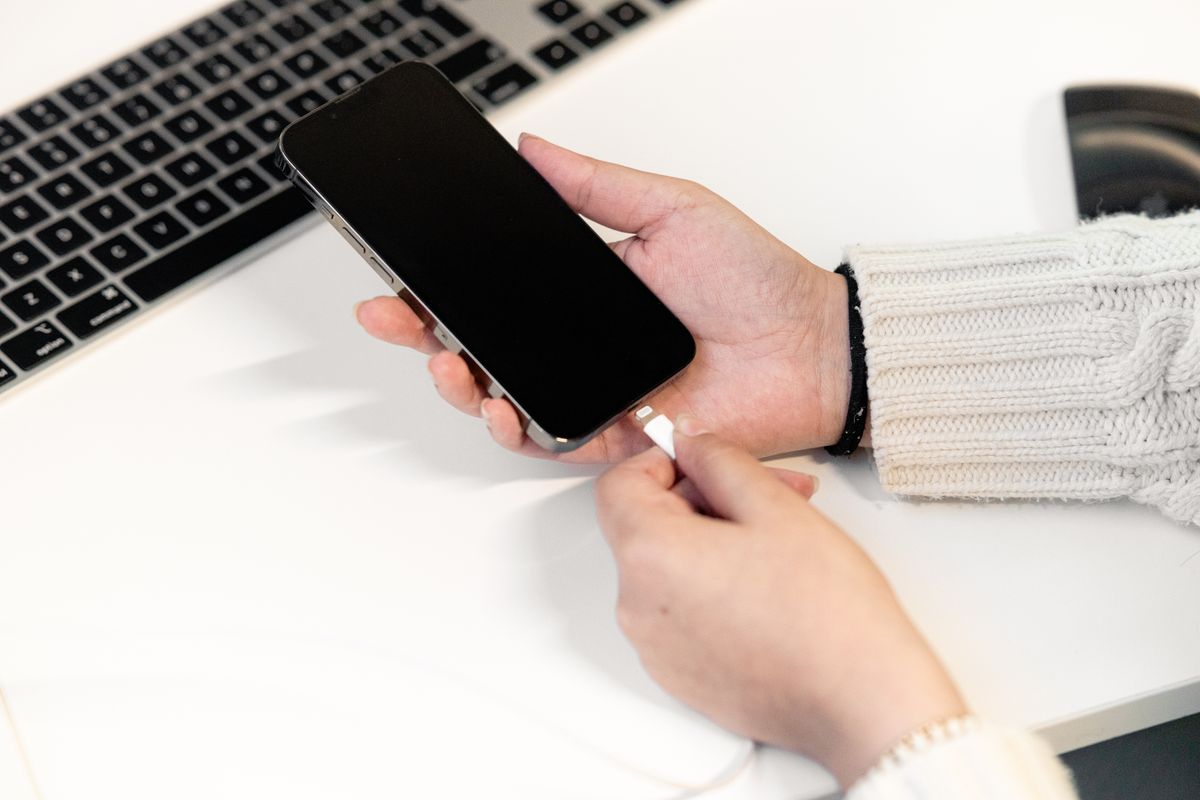
- Try another cable, charger and wall outlet. Check the cable and adapter for damage, and don't use damaged ones.
- Look inside the charging port. Lint and dust often block the cable. Carefully remove it with a wooden or plastic toothpick, never anything metal.
- Restart the phone and let it charge for half an hour. If it still doesn't turn on, force restart it and charge it for another half hour (Apple: If your iPhone won't charge).
- iPhone stops at 80%? That's usually Optimized Battery Charging, a feature that protects the battery. It's not a fault.
- A phone that is too hot or too cold can pause charging until it gets back to a normal temperature.
- If the port feels loose or nothing works, the charging port may need repair.
9. Wet phone
- Turn the phone off if it's still on, and don't charge it while the port is wet.
- Tap it gently against your hand with the charging port facing down to remove extra water.
- Leave it in a dry place with some air flow. Wait at least 30 minutes before you charge it. If your iPhone still shows a liquid alert, it can take up to 24 hours to dry.
- Don't put your phone in rice. Apple warns that small rice particles can damage it. Also don't use a hair dryer, another heat source, compressed air or a cotton swab (Apple: liquid-detection alert).
- If your phone fell in salt water or other liquids, or it doesn't work properly once dry, take it to a repair service.
10. Virus or malware on your phone
Signs can be pop-up ads everywhere, apps you didn't install, a battery that drains much faster than before, or data use you can't explain.
- On Android, open the Play Store, tap your profile icon, then Play Protect, and scan your phone. Play Protect checks your apps for harmful behaviour and can remove them (Android Help: Google Play Protect).
- Uninstall apps you don't recognise or don't trust. Only install apps from the App Store or Google Play.
- On iPhone, update to the latest iOS and delete apps you don't recognise. Also check Settings > General > VPN & Device Management for profiles you didn't install yourself.
- Change your important passwords and turn on two-step verification.
Signal, mobile data, Wi-Fi and SIM problems
11. No signal, "No Service" or "SOS only"
If your phone shows No Service, Emergency calls only, or SOS on an iPhone, it can't connect to your carrier's network. You can still call emergency services, but not make normal calls or use mobile data.
- Turn Airplane Mode on, wait 30 seconds, and turn it off.
- Restart your phone and check for updates.
- Take out the SIM card and put it back in, or turn your eSIM line off and on.
- Check with your carrier that your line is active and your plan is paid.
- Abroad? Turn on Data Roaming and make sure your plan works in that country.
Step by step for iPhone: how to fix the "SOS only" status on an iPhone.
12. Mobile data not working
You have signal bars, but no internet without Wi-Fi. On Android, you may see "No mobile data service" or "Temporarily turned off by your carrier".
- Check that mobile data is on. On iPhone, go to Settings > Cellular (or Mobile Service) and turn on Cellular Data. On a Pixel, go to Settings > Network & internet > SIMs and turn on Mobile data (Pixel Phone Help: Fix mobile connectivity issues).
- With two SIMs or eSIMs, check which line is selected for mobile data.
- Check that you still have data left on your plan and that your account is paid. Carriers can pause data when you've used your allowance.
- Turn Airplane Mode on and off, then restart.
- Check your APN settings. Your carrier can give you the right ones.
On iPhone, a "Could Not Activate Cellular Data Network" message has its own fixes: see how to fix "Could Not Activate Cellular Data Network".
13. Wi-Fi won't connect (but other devices can)
- Turn Wi-Fi off and on. Forget the network and join it again with the password.
- Turn off any VPN or security app and try again.
- Move closer to the router and restart it.
- Last step on iPhone: Settings > General > Transfer or Reset iPhone > Reset > Reset Network Settings. This also erases saved Wi-Fi passwords and your cellular, VPN and APN settings (Apple: If you can't connect to Wi-Fi). Android phones have a similar option, usually under Reset options in Settings.
14. Can't make calls or send messages
- Check that you have signal and that Airplane Mode is off.
- Check the number, and add the country code if you're calling or texting abroad.
- Check that you haven't blocked the contact.
- On a prepaid plan, check your balance.
- For "Message not sent" on Android, update Google Messages and make sure it's your default messaging app (Google Messages Help).
- Picture messages (MMS) need mobile data. Turn it on and try again.
15. SIM card not detected, invalid or locked
- No SIM or invalid SIM: turn the phone off, take out the SIM, check it's clean and the right way up, then put it back. Try it in another phone to see if the SIM or the phone is the problem. A phone locked to another carrier can also show this message.
- PIN or PUK lock: if you enter the wrong SIM PIN 3 times, the SIM asks for a PUK code. Don't guess the PUK: too many wrong tries can block the SIM for good. Your carrier can give you the PUK. More in how to unlock a SIM card without a PUK code.
16. eSIM not working

If your eSIM is installed but you have no service or no data, turn the eSIM line off and on, check that it's selected for mobile data, and turn on Data Roaming if it's a travel eSIM. Don't delete the eSIM: you usually need a new one from your provider to install it again. Full guides:
Travelling soon? Many network problems abroad come from roaming: it's switched off, not included in your plan, or expensive. A travel eSIM gives you local data in the countries you visit, next to your usual SIM. Install it on Wi-Fi before you leave and turn on Data Roaming for it when you land.
Asia, Europe and USA plans shown · data-only eSIMs, no phone number · Find the eSIM for your destination
Common Android problems
17. Google Play Store won't download apps or keeps crashing
- Check your internet connection and free storage. Apps can't download when your phone is full.
- Go to Settings > Apps > Google Play Store > Storage & cache. Tap Clear cache, then Clear storage. Open the Play Store and try again.
- Still stuck? Do the same for Download Manager. Google suggests clearing Google Play services only after the other steps, because you may need to sign in again (Google Play Help: Fix problems with the Play Store).
- Restart your phone.
18. Google account won't sync
- Check your internet connection and that the date and time are set automatically.
- In Settings, open the accounts section (called Accounts or Passwords & accounts, depending on your phone), pick your Google account and sync it manually.
- If you recently changed your Google password, sign in again on the phone.
- Last step: remove the account from the phone and add it again. Make sure your data is backed up first.
Common iPhone problems
19. iPhone screen too dark, even at full brightness
- Check Settings > Accessibility > Display & Text Size. Turn off Reduce White Point if it's on. In the same menu, Auto-Brightness changes brightness with the light around you.
- A hot iPhone dims its screen to protect itself. Let it cool down (Apple).
20. iPhone can't connect to the App Store
- Check Apple's System Status page. The problem may be on Apple's side.
- Open a website in Safari to check you're online. If you use mobile data, make sure Cellular Data is on.
- Turn off any VPN or security app.
- Go to Settings > General > Date & Time and turn on Set Automatically.
- Update iOS, then try another network (Apple: If you can't connect to the App Store).
When to take your phone in for repair
Some phone problems are hardware problems, and no setting will fix them. Back up your phone and contact the manufacturer or an authorised repair shop if:
- the screen is cracked, has lines or coloured spots, or doesn't respond to touch after a restart,
- the battery is swelling or the back of the phone is lifting. Stop using and charging the phone,
- the charging port is loose or still doesn't work after cleaning,
- the phone got wet and doesn't work properly once dry,
- the phone stays black or won't turn on after charging and a force restart.
FAQs
What are the most common mobile phone problems?
Common ones are a slow phone, bad battery life, overheating, full storage, apps that crash, a frozen screen, a phone that won't charge, no signal, mobile data not working and Wi-Fi problems. Most of them can be fixed with a restart, an update or by freeing up storage.
Why is my phone not working properly?
Often because storage is almost full, the software or an app is out of date, or an app is misbehaving. Restart your phone, update it and its apps, and free up storage. If it started after you installed an app, remove that app.
How do I fix this problem on my phone?
Start with the quick fixes at the top of this page: restart, update, free up storage, and toggle Airplane Mode for network problems. Then find your exact problem in the list above.
How do I restart my phone if the screen is frozen?
Force restart it. On iPhone 8 or later: press volume up, press volume down, then hold the side button until the Apple logo appears. On Samsung: hold the side key and volume down for more than 7 seconds. On Pixel: hold the power button for about 60 seconds.
Should I put my wet phone in rice?
No. Apple advises against it, because rice particles can damage your phone. Leave it in a dry place with air flow, and don't charge it until it's dry.
How do I know if my phone has a virus?
Watch for pop-up ads, apps you didn't install, fast battery drain or unusual data use. On Android, run a Play Protect scan. On any phone, remove apps you don't recognise and keep your software up to date.
Why does my phone say "SOS only" or "No Service"?
Your phone can't connect to your carrier's network. Toggle Airplane Mode, restart, reinsert the SIM and check that your line is active. Abroad, turn on Data Roaming. See our guide to fixing "SOS only" on iPhone.
Why is my mobile data not working when I have signal?
Check that mobile data is on and the right line is selected for data, that you have data left on your plan, and that your APN settings are correct. Turning Airplane Mode on and off and restarting fixes it in many cases.